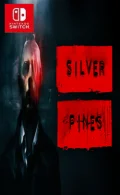



01009C000E442000What starts out as a simple pizza tossing fun turns into something much, much more. Push through the glitchy arcade game to reveal that you are at your own Freddy Fazbear’s Pizzeria! Browse our catalogs and purchase your first attractions and animatronics, customize your decorations, and above all make sure that all the equipment is working properly before opening the doors of your brand new Freddy Fazbear’s Pizzeria! After a busy day, wrap up the paperwork and shut down your business (often late into the night as you build your own business!) Be careful, however, of what could possibly lurk in the air vents. If anything should catch your attention, turn your flashlight straight into the vent to repel it, Fazbear Entertainment supplies batteries free of charge to all of its franchisees!
Please report any broken/dead/missing links in the comment section.
Installation & Setup Guide
Option 1: Installing on Nintendo Switch (Atmosphere CFW)
- Download all game archive parts from the mirrors above into a single folder on your PC.
- Extract
part1.rar(or the single archive) using 7-Zip to get the.nsp,.nsz, or.xcifile. - Connect your Nintendo Switch to your computer with a USB-C cable and launch DBI on the console.
- Select Run MTP Responder in DBI, then drag-and-drop the ROM file into the MicroSD install drive.
- Wait for the install bar to reach 100%, disconnect the USB cable, and launch the game from the Switch Home Menu!
Option 2: Playing on PC / Android (Ryujinx, Sudachi, or Suyu Emulator)
- Download and extract the game archive to obtain the
.nspor.xcifile. - Open your Switch emulator (such as Ryujinx or Sudachi) and ensure your
prod.keysand firmware are updated to the required version. - Click File > Load Application (or configure your game directory) and select the game file.
- Configure your controller under Input settings and start playing!


Explore the complete catalog in our Nintendo Switch Games and Full Game Index.